Step-by-step guide
How to register your producers and add them to your team
Three steps: send each person the producer sign-up link, they register with the same email they use in Minute, and you add them to your team in the portal under My team → Available → Add. If you do not add them, their hours do not count for you.
The basics
- Link for your people
- app.dovra.ai/registro/?rol=productor
- The same one the person uses in Minute
- Where you add them
- Portal → My team (coordinator: My network) → Available → Add
- Then
- Their agreement, from the Agreement column in My people
Step 1. Send the sign-up link
Send each person, by WhatsApp or email, the link app.dovra.ai/registro/?rol=productor&l=en (use &l=es or &l=uk for Spanish or Ukrainian). A short message is enough, for example: “Sign up here as a producer. Use the same email you use to sign in to Minute.”
Step 2. The person signs up with their Minute email
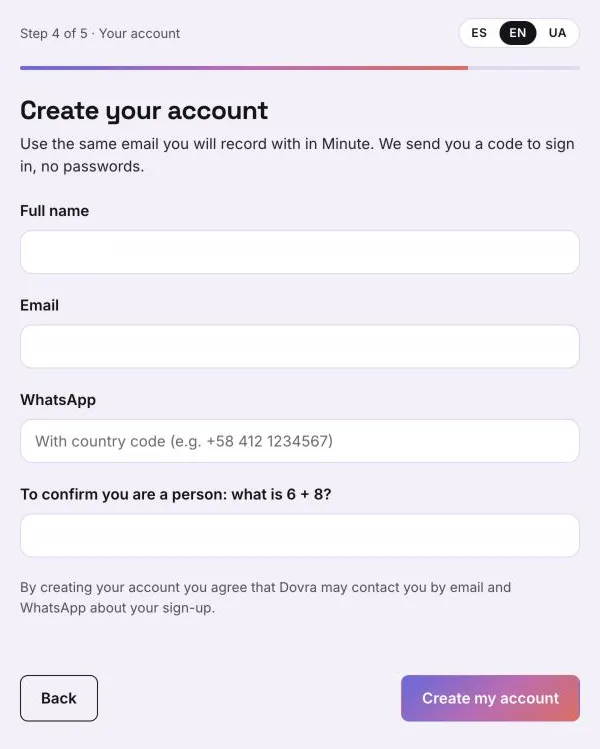
Sign-up has five steps and, if the person qualifies, the account is created right away (explained with screenshots in how to sign up as a producer). The one thing to watch: they must use the same email they use in Minute. Hours are matched by email; with a different email they do not show up in their account or in your team.
Step 3. Add them under My team → Available
Open the portal and go to My team (coordinators: My network). Tap the Available tab: these are people who do not have a leader yet. Search by name or email and tap Add. The portal confirms “Added to your team.” and the person moves to My people. Coordinators also see Add as leader.
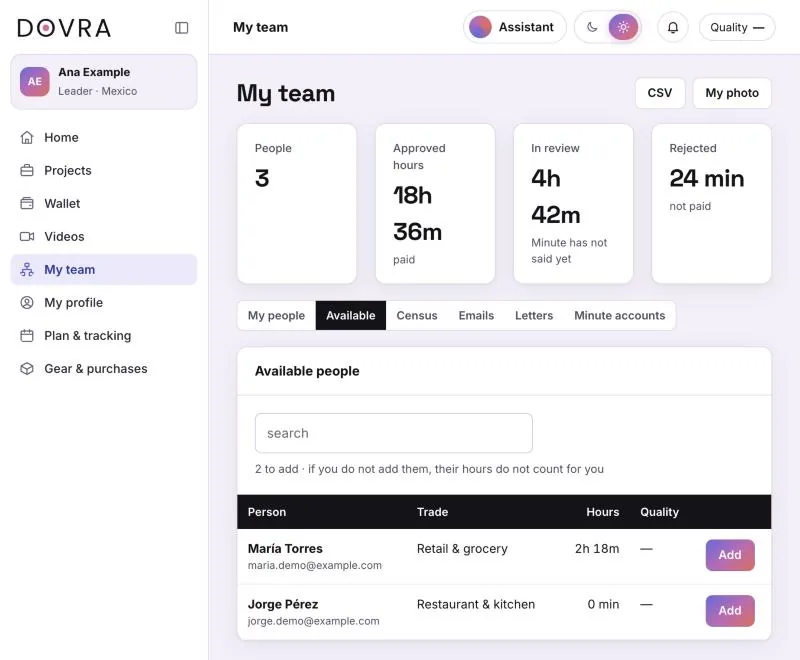
If they are not in Available: check that they already have their Minute account with that same email (the list updates with the daily Minute sync, so it can take a day). If they already belong to another leader’s team they will not appear in your list; in that case, write to Dovra.
Step 4. Create and send their agreement
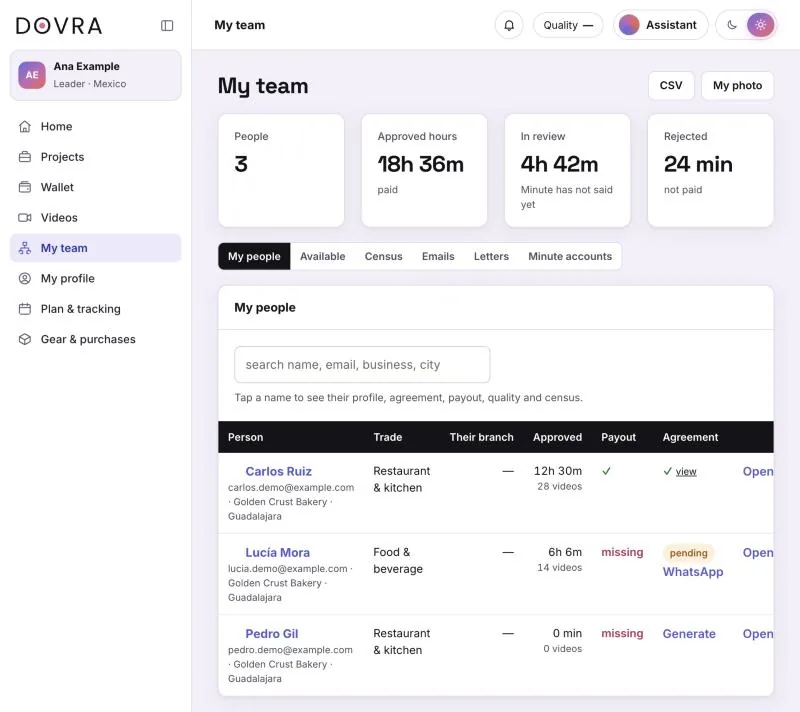
In My people, the Agreement column shows what is missing: Generate creates that person’s agreement; while it is pending, the WhatsApp button copies a message with the link so they can sign from their phone; once signed you see ✓ and view.