Step-by-step guide
How to sign up as a producer, step by step
You sign up at app.dovra.ai/registro/?rol=productor in five steps. If you qualify, the account is created on the spot: a code arrives by email, you enter your portal, join a project and open Minute from there with that project’s link.
The basics
- Where
- app.dovra.ai/registro/?rol=productor
- How you sign in
- With your email and a code sent to it. No passwords.
- Which email
- The same one you record with (or will record with) in Minute
- Who can join
- People who own or work at a small business in a listed sector, in a listed country, with a listed phone
- Approval
- None: if you qualify, the account is created right away
Step 1. Your situation
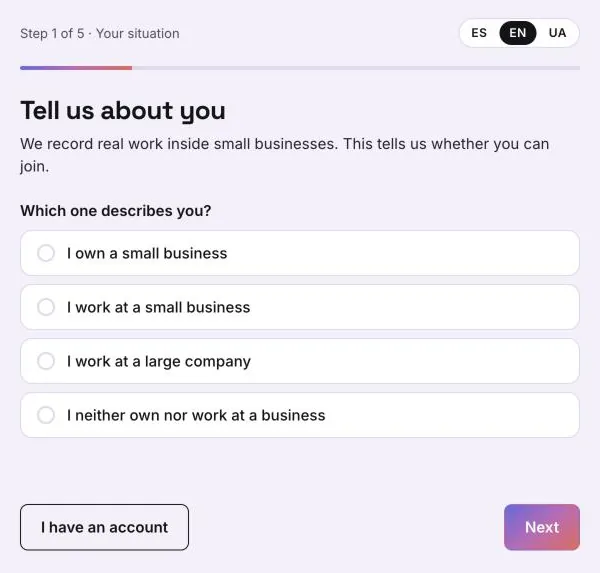
The first question is “Which one describes you?”. Recording happens inside small businesses, so only I own a small business and I work at a small business move forward. With the other two the page answers “We cannot add you right now”. The language switch (ES · EN · UA) is at the top right.
Step 2. Your business
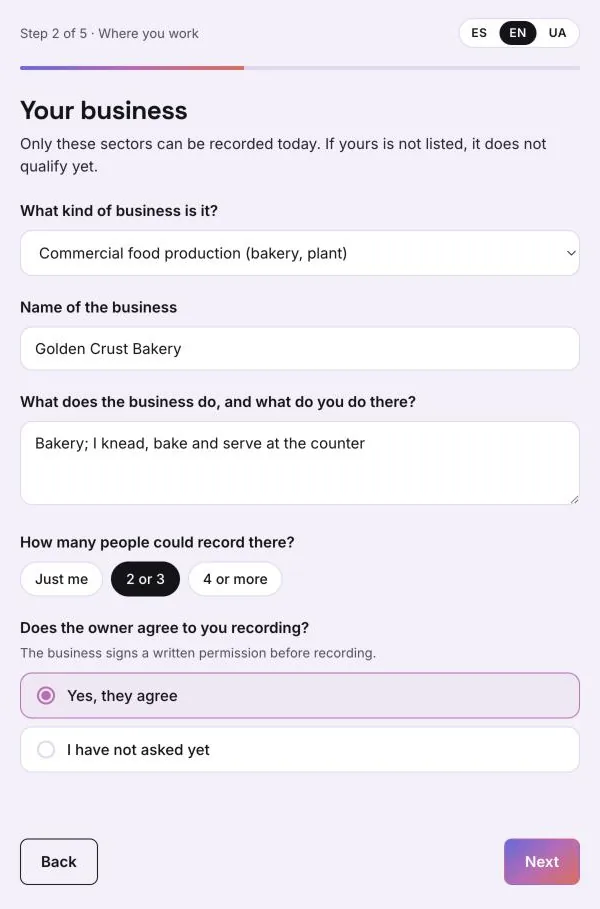
Pick the sector (only the ones that can be recorded today are listed), type the business name, what the business does and what you do there, and how many people could record. If you work there, it asks whether the owner agrees: the business signs a written permission before recording (see which agreements a business signs).
Step 3. Where you are and what you record with
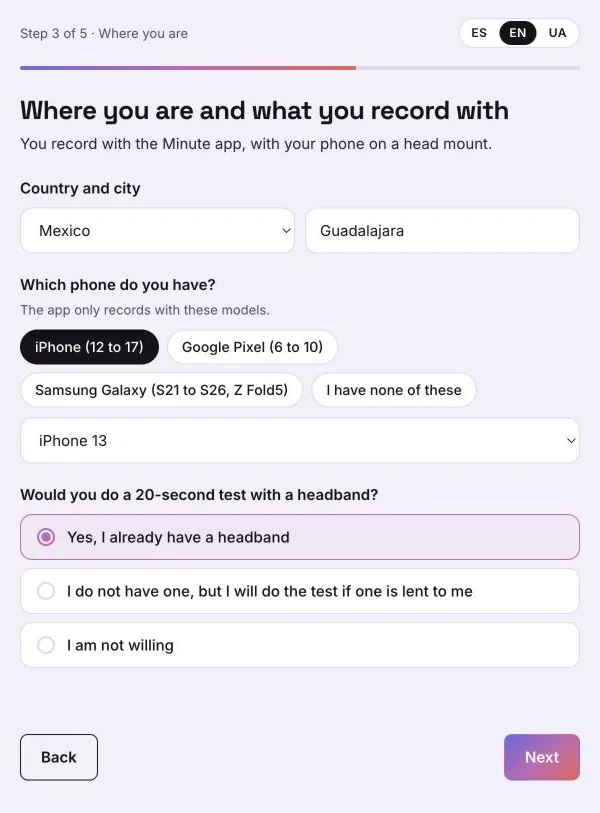
Country and city, your phone brand and exact model (the Minute app only records with the listed models) and whether you would do a 20-second test with a head mount. If your country is not listed, your phone is not a supported model or you do not want to wear the mount, the page tells you and no account is created.
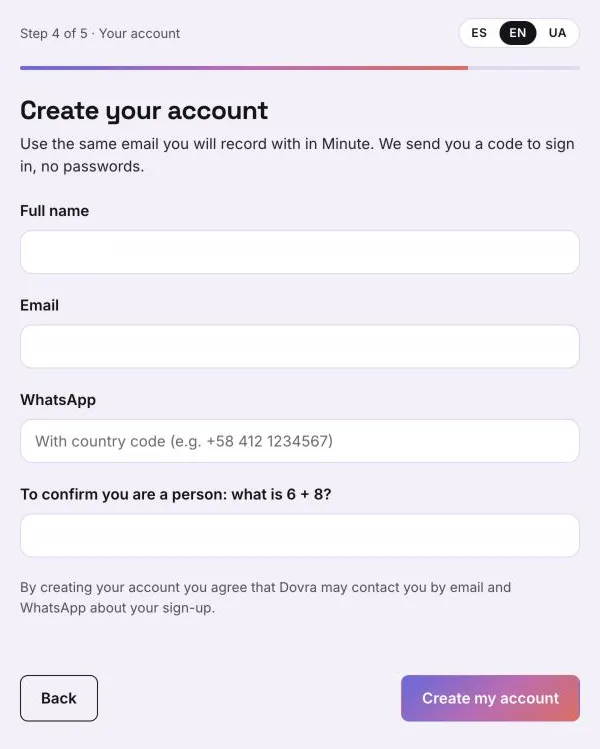
Step 4. Create your account
Full name, email, WhatsApp with country code, and a sum to confirm you are a person. Use the same email you will record with in Minute, so your hours match your account. Tap Create my account.
Step 5. Check your email and sign in
If you qualify, the account is created immediately and the page switches to “Check your email”: you get an 8-letter code. Paste it and tap Go to my portal. If it does not arrive, check spam or tap Send another code.
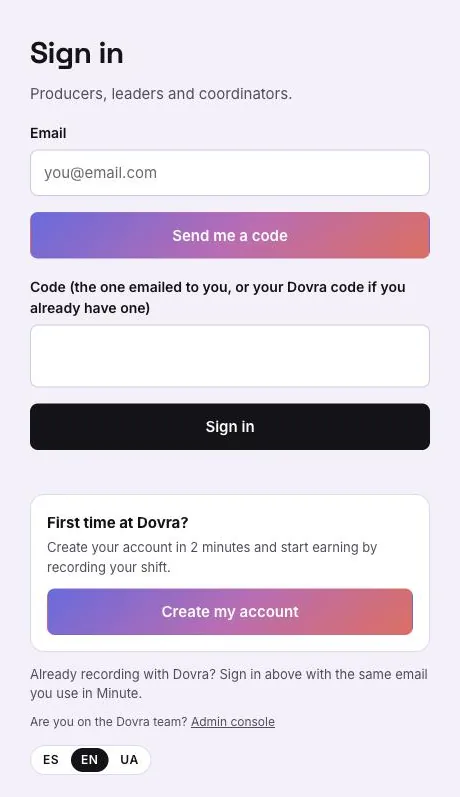
Next time, go to app.dovra.ai/app: type your email, tap Send me a code, paste the code and tap Sign in.
The first time, you complete Your profile in three screens: full name as on your ID, country, city and WhatsApp; the trades you work in and your languages; and a short summary of how it works. You finish with Enter Dovra.
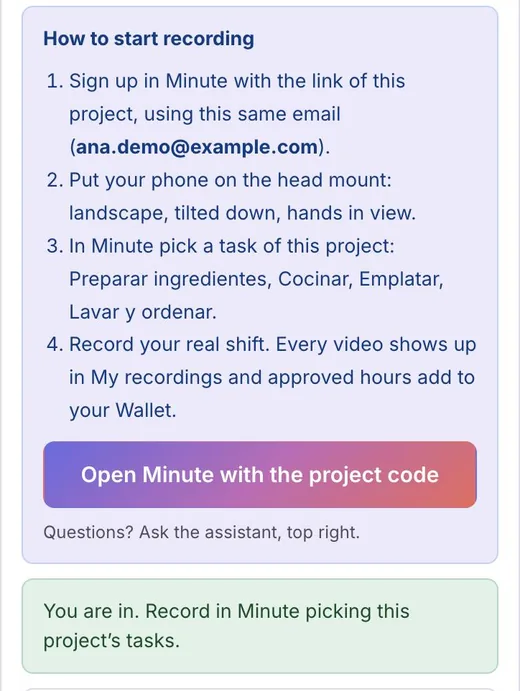
Step 6. Join a project and open Minute
Under Projects you see the open projects and whether you meet their conditions. Open one and tap Join project (if Dovra reviews entry it says Apply, and if it asks for a test video, Upload video & apply). Once you are in, “How to start recording” appears with the Open Minute with the project code button: sign up in Minute with that link and the same email. The link belongs to that project and is only shown to people already in it.